Creating a Second Language Section in WordPress

Let’s face it: automated translation software just does not cut it. So what if I want to translate my English-based WordPress website into Spanish or another language?
This can be done with a little bit of template editing and some unique pages. The suggestions below will help you establish an alternative navigation menu, display an alternative header, and create content with a unique template. All of these steps are supported with the latest WordPress so no plugin is necessary!
Create some new pages.
Testing your new section will be much easier if you have some pages to populate the menu first. Create at least one page in your language. Be careful not to use accents or other special characters in the URL (if you have one in the title you will need to edit the URL). The URL structure should be basic letters and dashes to prevent breaking the ability to view that page. You can Publish these new pages, assuming you did not include them in the menu of your live website (English version) – so they are still behind the scenes for now.
Make a new menu.
Under Appearance > Menus, you should have a listing of your current menus. Click on the “add” tab (a plus sign) to create a new menu for your language section. In my case, I will call it menu Spanish.
Add the pages you created earlier to this menu and Save the changes.
Now, we need to find out the menu id number. An easy way to do this is to click the tab for your menu and notice the URL at the top, which will end in an id number like this:
wp-admin/nav-menus.php?action=edit&menu=71
So, my menu ID is 71. Jot this number down for reference.
Create a new header file.
In your wp-content folder, you should have a standard file header.php. I am assuming you have a basic understanding of the file structure of a typical WordPress website. Make a copy of this file named appropriately for your section, such as header-spanish.php. Now make some small edits to the file to replace English words with your language (maybe a slogan or other text displayed in this header).
Toward the end of this file, there is probably a reference to your navigation menu. For example it might look like this:
<?php wp_nav_menu( array( ‘container’ => ”,’menu_id’=>’suckerfishnav’, ‘menu_class’ => ‘sf-menu sf-js-enabled’, ‘menu’ => ‘menu’, ) ); ?>
This one is a little more elaborate because I added some dropdown menus and classes. At the end, notice it just has ‘menu’ as the identifier. WordPress looks for the first, default menu. Change this value to your id number instead. So my line in the new header file becomes:
<?php wp_nav_menu( array( ‘container’ => ”,’menu_id’=>’suckerfishnav’, ‘menu_class’ => ‘sf-menu sf-js-enabled’, ‘menu’ => ’71’, ) ); ?>
Save and upload your header file to the server.
Create a page template.
Make a copy of your default page.php file. Put a template name in the heading of this file.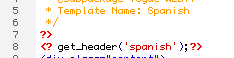
At the top of this file, you should notice a line to include the default header. The parenthesis within it is blank. Include the name of your new header file, enclosed in single quotes inside this parenthesis, such as:
<? get_header(‘spanish’);?>
You might decide to change other things in your page template, but this will at least include your custom header (along with the custom menu) into this layout.
Assign your template to the page.
Now go back and edit your pages for this special language section, and update the Template to your new custom template. You should see the name of it in the dropdown choices. Update/Publish the page to reflect this change. The next time you preview the page, you should see your updated header information and your translated menu loading instead of the default.
And lastly, once all your pages and menu items are complete and your new section is satisfactory, add some links to it on your main index page or your default menu so your visitors will be able to locate it.

Managing Director
Posted in: Austin Web Design, How To, Web Development, WordPress web design, WWW Learning Center
11 responses to “Creating a Second Language Section in WordPress”
Latest & Greatest
- The Evolution of Driving Schools From Classroom Instruction to Mobile-First E-Learning Apps
- How to Write Website Copy That Helps You Rank on Google
- Different Ways to Insert a Contact Form on Your Website
- From Contact Forms to Conversational AI: The Evolution of Website Communication
- How Many Plugins Should a WordPress Site Have?
- How to Prepare Your Website Content
- How to Fix Common Website Bugs































Thanks Jacqueline,
The tip with the custom page template was exactly what I needed to add a few English pages to my German website.
My last site used qTranslate plugin – and that worked fine for full dual-language site, but for just 2 or 3 pages your solution is simpler and easier.
Great, Bruce. I am so glad my post was of help to you and now your site probably has much more accurate German than the plugin would have delivered.
ok, and what about new language uses regular link-to-post, which is index.php/name-of-post where you can’t set the new header, so you’re back to old language..
Hi, Andrei,
In this method it is assuming the content actually has 2 versions (one for each language) and each Page has been assigned to its appropriate language template. Each template would have its own unique header and menu links and different sidebar widgets that all go to the appropriate language content. If you are referring to a dynamic blog Post there might be a different method that would be a better fit.
Hi, Codruta,
Thanks for your comment. I recommend consulting the documentation and support for your Prospect theme, since each theme can vary and they might have customized the handling of the menu code in that theme. Once you find out the correct menu variables to use in that theme, you just need to include the name of your language version or the menu id number to tell WordPress to include that specific menu. In some themes it has worked better for me to use the menu ID rather than the name.
Hi Jacqueline,
Thank for this tutorial. I don’t like to use plugins, I like to make things MY WAY although is a lot more work. With the help of this tutorial I’m in control again :)
Best wishes!
You are welcome, Robert. I am glad to the instructions were helpful.
Thank you soooo very much for this, Jacqueline! It saved my life! ;)
And just to add one thing… I couldn’t quite get it to work until I also followed the instructions in another blog post to add a second menu into my theme in the functions.php file. Here’s the post I found for that, in case it’s helpful for anyone else: http://graphpaperpress.com/tips/add-another-wordpress-menu/
You’re welcome Jess! Glad it helped.
Hi, Daniel. In the method I am suggesting here, you will first create all of the content in Pages – and make 2 sets – make a set for Romanian text and another set for the English version pages. Then you will also create 2 different Templates for your theme, and 2 different navigation menus. Since WordPress has had several upgrades since I first wrote this, you probably should follow WordPress instructions for the latest version to add new menus. Then, you can go back to each page with Romanian text and assign it to your Romanian template (which has the menu for Romanian), and assign all the English version pages to the English template. Good luck!
Daniel, I think I understand why you might have a different challenge, since you may be using Posts for the blog instead of Pages. This method is for web pages, and not a blog. You might be able to do something similar by using categories – you could create a category for Romanian and a category for English and configure WordPress to serve a different template for that category, maybe.